
The Core Trade-Off: Range vs. Speed
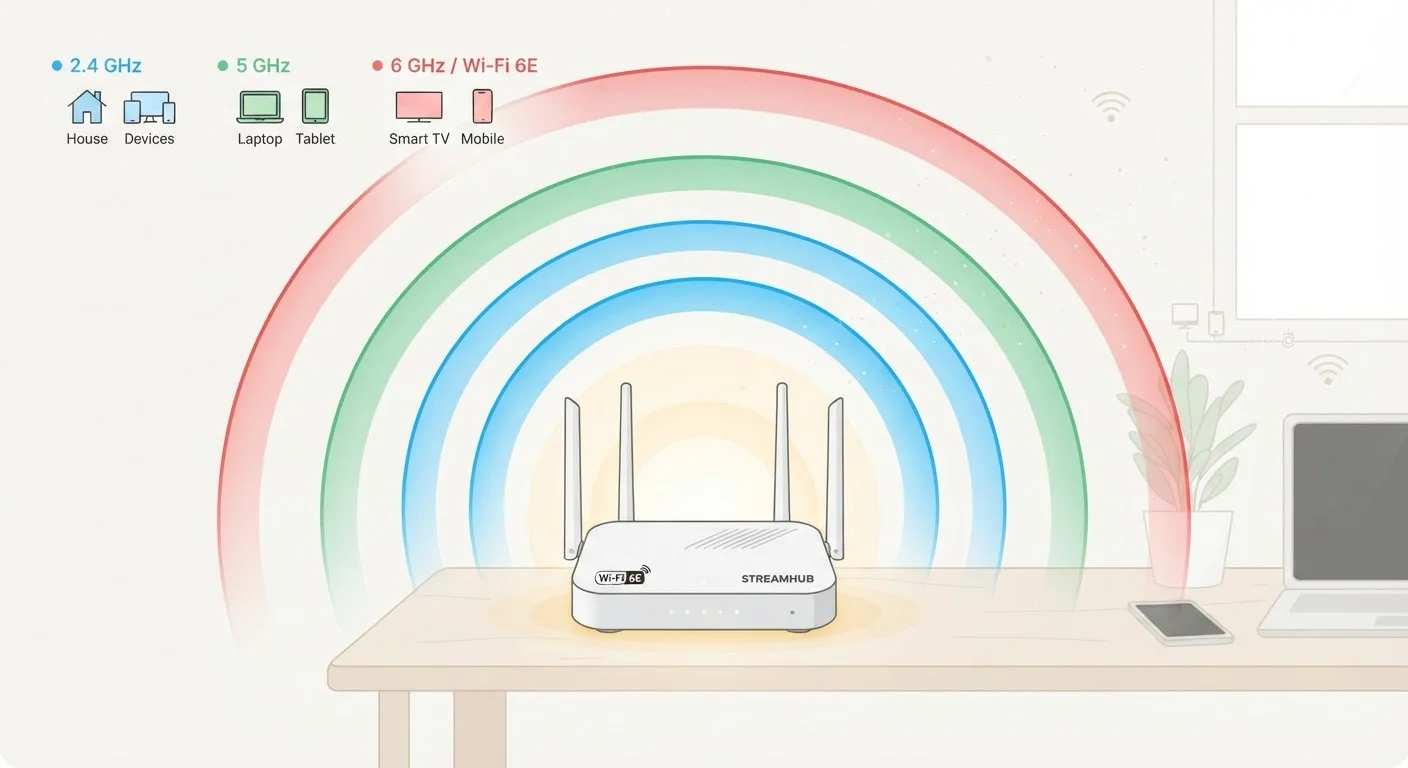
Every Wi-Fi band makes the same fundamental trade-off: the higher the frequency, the faster the data transfer — but the shorter the effective range. Think of it like sound. A deep bass note travels through walls easily; a high-pitched tone does not. Radio waves behave similarly.
2.4 GHz sits at the low end. It passes through walls, floors, and furniture with relative ease, making it the right choice for devices spread across a large home or in rooms far from the router. The downside: it's a crowded band. Almost every router sold in the last 20 years uses it, and so do many Bluetooth devices, microwaves, and baby monitors. That congestion translates directly into slower, less consistent speeds.
5 GHz offers a practical middle ground. It delivers significantly faster speeds than 2.4 GHz and has far more available channels, which means less interference. The trade-off is range — it loses signal strength more quickly, especially through dense walls. For most rooms within a typical home, though, 5 GHz hits the sweet spot between speed and reach.
6 GHz is the newest addition, introduced with the Wi-Fi 6E and Wi-Fi 7 standards. It offers the widest channels and least congestion of all three bands, enabling the highest possible throughput. The catch: it has the shortest range of the three and requires hardware released within the last few years on both the router and device side. Physical obstacles like walls and appliances affect 6 GHz more than either of the other bands.
Matching Bands to Device Types
Rather than connecting everything to the same band, think about what each device actually needs.
14 channels
Available on 6 GHz vs. 3 on 2.4 GHz
The 6 GHz band (as defined by the Wi-Fi Alliance for Wi-Fi 6E) supports up to 14 wide 80 MHz channels, compared to just 3 non-overlapping channels on 2.4 GHz, reducing interference significantly.
~9.6 Gbps
Maximum theoretical throughput on Wi-Fi 6
The Wi-Fi Alliance notes that Wi-Fi 6 (802.11ax) can reach up to 9.6 Gbps under ideal conditions — roughly three times faster than Wi-Fi 5 — with gains most visible on the 5 GHz and 6 GHz bands.
40%
Of U.S. households with Wi-Fi interference issues
A study by networking researchers found that roughly 40% of residential Wi-Fi problems stem from channel congestion on the 2.4 GHz band rather than ISP speed limitations.
- Smart home sensors, thermostats, and older devices: These typically require 2.4 GHz because they don't support newer standards. They also don't need fast speeds — a smart plug sending a status update uses almost no bandwidth. Assign these to 2.4 GHz and leave them there.
- Streaming sticks, smart TVs, and gaming consoles: These benefit from the faster, less congested 5 GHz band, provided they're within a reasonable distance of the router. High-definition streaming and online gaming are sensitive to latency and packet loss, both of which are worse on a congested 2.4 GHz network.
- Laptops, phones, and tablets used for video calls or large downloads: Connect these to 5 GHz or 6 GHz when in the same room as the router. If a device supports 6 GHz and the router does too, that band will provide the fastest, most interference-free experience.
- Security cameras: Placement often determines band. A camera near the router can use 5 GHz; one at the edge of the property is usually better served by 2.4 GHz for its stronger reach.
If you find that certain devices drop connection or perform inconsistently, router placement is often an overlooked factor worth examining alongside band selection.
How to Put This Into Practice
Most modern dual-band and tri-band routers handle band selection automatically through a feature called band steering. It works adequately in many homes, but if you're troubleshooting sluggish performance, taking manual control is straightforward.
Log into your router's admin interface — typically accessible by typing 192.168.1.1 or 192.168.0.1 into a browser — and look for wireless settings. From there you can assign separate network names (SSIDs) to each band. For example: HomeNetwork_2.4, HomeNetwork_5, and HomeNetwork_6. Then connect each device to its appropriate band manually.
Separate Your Network Names by Band
Creating distinct SSIDs for each band gives you direct control over which devices connect where. This is especially useful for smart home gadgets that only work on 2.4 GHz — they'll stop accidentally trying to join the faster bands and failing. Most router admin interfaces include this option under wireless or Wi-Fi settings.
One practical note: some smart home devices, particularly older models, will refuse to connect during setup if the phone running the setup app is on a 5 GHz or 6 GHz network. If you run into this during device pairing, temporarily switch your phone to the 2.4 GHz network, complete the setup, then switch back. Understanding how these bands interact is part of building a home network that actually works — and it pairs naturally with the broader question of what your router and modem are each doing in your setup.
For applications where wireless just isn't cutting it — a desktop PC used for large file transfers, a gaming console in the same room as the router — it's worth knowing that a wired Ethernet connection remains the most reliable option regardless of which band your router supports.