
Why Apps Ask for Access in the First Place
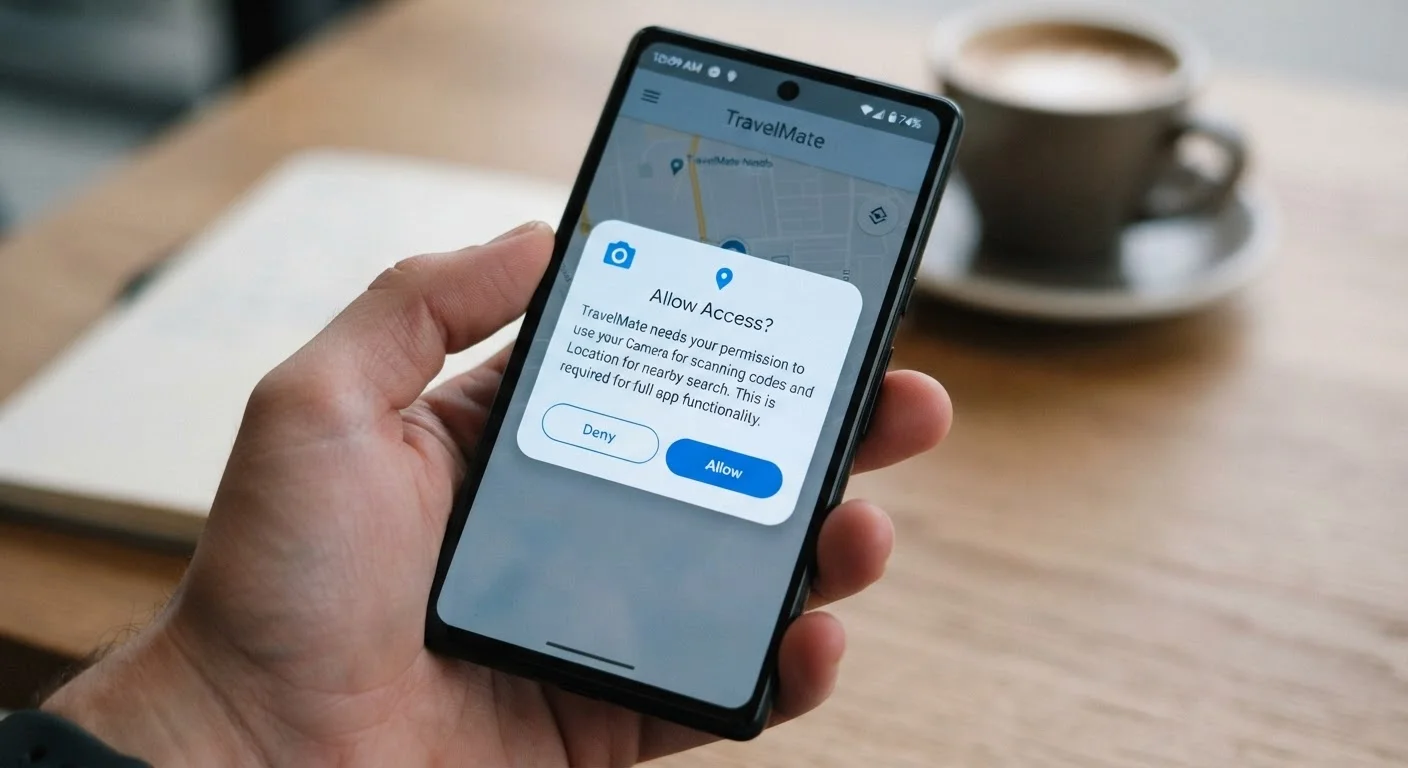
Every time you install an app and a dialog box pops up asking for permission, your phone is doing something important: giving you a moment to decide before handing over access. The problem is that most people tap 'Allow' reflexively, without knowing what they're actually agreeing to.
App permissions exist because your smartphone is packed with sensors and stored data that apps could exploit if left ungated. Developers request permissions because their apps genuinely need them — or, sometimes, because having that data is valuable to them for advertising or analytics purposes.
Understanding the difference is the key skill here. It doesn't require technical knowledge; it just requires asking one simple question: Does this app actually need this to do its job?
To go deeper on how app business models shape what data they collect, see The Privacy Trade-Off Behind Free Apps.
What Each Common Permission Actually Does
Here's a plain-language breakdown of the permissions you'll encounter most often:
- Location: Lets the app know where you physically are. Options typically include 'Always,' 'Only While Using,' or 'Never.' Navigation, weather, and food delivery apps have legitimate uses; a calculator app does not.
- Camera: Gives the app the ability to open your camera lens and capture photos or video. Legitimate for photo editors, video call apps, and QR scanners.
- Microphone: Allows the app to record audio. Needed for voice calls, dictation, and recording apps. Suspicious in apps that have no audio functionality.
- Contacts: Reads the names, phone numbers, and email addresses saved on your phone. Messaging apps may use this to find your friends. Random utility apps have no reasonable need for it.
- Photos/Media: Lets the app read or write files in your photo library. Editing apps need it; games generally don't.
- Notifications: Allows the app to send you alerts. This doesn't expose your data, but it affects your attention — and apps often over-request it. See how to manage notification overload for a practical framework.
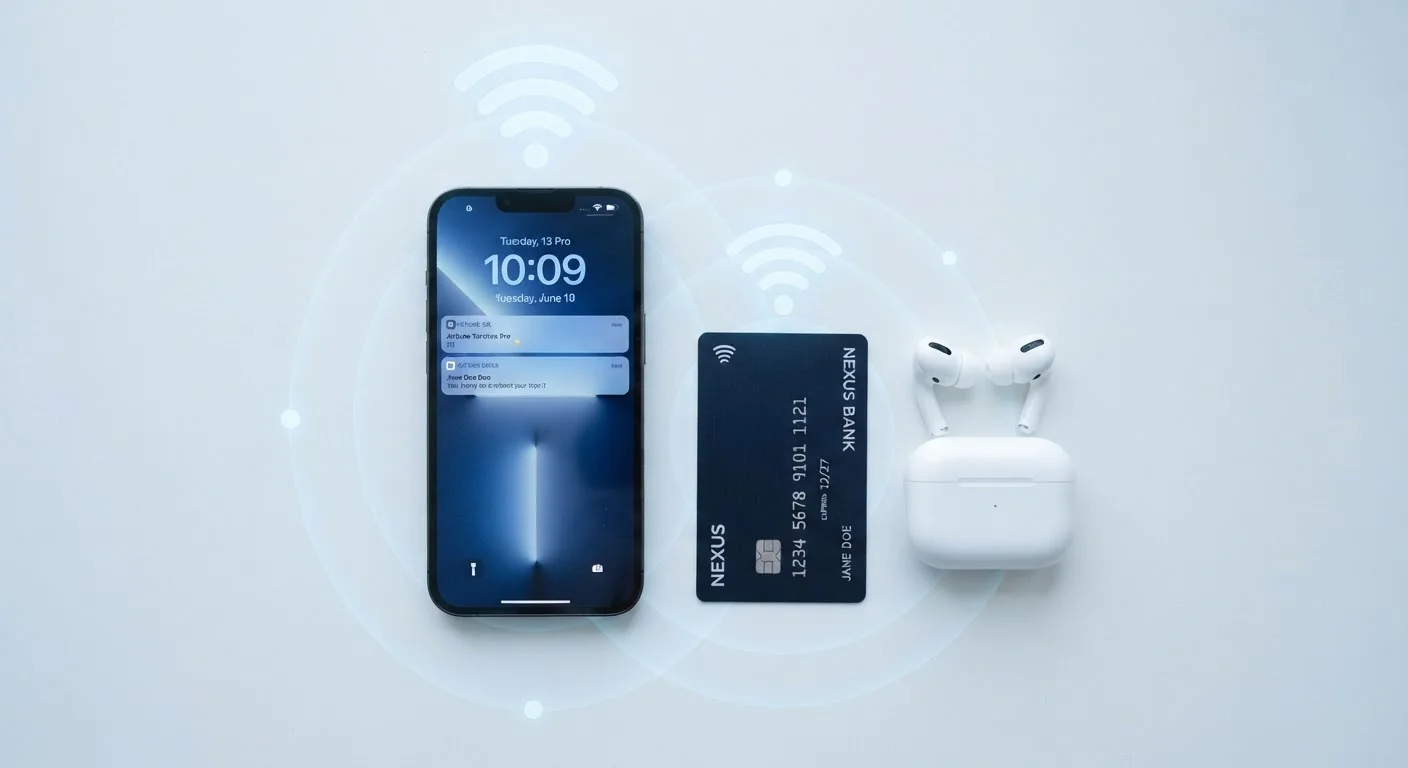
- Bluetooth: Enables the app to connect to nearby devices. Expected for speaker, headphone, or fitness tracker apps; unusual for a recipe app.
Start with 'Only While Using'
For any permission that offers a time-based option — especially location — always start with 'Only While Using the App.' This gives the app the access it needs without letting it run in the background. You can upgrade the permission later if you find a legitimate reason to do so.
When It's Safe to Say No
Denying a permission doesn't break an app — it just limits what that app can do. Here's a practical decision framework:
- Match the permission to the purpose. If a flashlight app requests your contacts or location, that's a mismatch. Deny it.
- Choose the most restrictive option first. For location especially, start with 'Only While Using the App.' You can always upgrade to 'Always' later if you find you need it.
- Distinguish between core and optional features. An app may ask for camera access, but if the camera feature is just a bonus add-on you'll never use, denying it costs you nothing.
- Revisit old permissions periodically. Apps you installed years ago may have permissions you've forgotten about. Your phone's Settings menu lets you audit all of them in one place — a worthwhile 10-minute habit. See hidden settings on your smartphone for other often-overlooked controls worth checking.
45%
Apps requesting more permissions than needed
Research from mobile security analysts has found that a significant share of apps request permissions beyond what their stated functionality requires, often tied to third-party advertising SDKs.
3 in 4
Smartphone users who rarely check app permissions
Surveys on mobile privacy behavior consistently show that most users grant permissions at install and never revisit them through device settings.
Free apps in particular warrant a closer look at permissions. Because many are funded by advertising, data access can be part of their revenue model — not just a feature requirement. Understanding what you agree to with free apps helps put those requests in context.
How to Review and Change Permissions You've Already Granted
Granting a permission is not permanent. Both major mobile platforms make it straightforward to reverse course:
- On iPhone (iOS)
- Go to Settings > Privacy & Security. Each category (Location Services, Camera, Microphone, etc.) shows a list of apps with their current access level. Tap any app to change it.
- On Android
- Go to Settings > Privacy > Permission Manager. You can browse by permission type to see every app that has access, and revoke it with a single tap.
A good practice is to check these lists every few months — especially after installing new apps or after an app updates and asks for new permissions it didn't previously require. That sudden new request after an update is worth scrutinizing carefully. The OS on your device also plays a role in how granular these controls get — iOS and Android handle permissions somewhat differently, as covered in operating system differences for users.