
Your Phone Already Has These Tools
The most powerful features on your smartphone are rarely the ones advertised on the box. They're tucked inside settings menus, labeled with technical-sounding names, and skipped over during setup. But they're already there, already paid for, and available to anyone willing to spend a few minutes exploring.
This isn't about downloading new apps or paying for upgrades. It's about getting full use out of software that shipped with your device. Whether you use an iPhone or an Android, the six settings below are worth knowing about — and most people have never touched them. For related underused tools beyond your phone, see what your browser can do without any extensions.
Focus Mode (and Scheduled Focus)
Focus mode — available on both Android and iPhone — lets you silence specific apps and contacts based on what you're doing. You can create separate Focus profiles for Work, Sleep, Driving, or Personal time. Each profile controls which notifications get through and which apps appear on your home screen.
The underused part is scheduling. Set a Work Focus to activate automatically at 9 a.m. and switch off at 6 p.m., and your phone manages interruptions without you lifting a finger. For a deeper look at controlling what demands your attention, see our guide to managing notification overload.
Scheduled Focus profiles let your phone manage interruptions automatically, with zero daily effort.
Adaptive Battery and Charging Limits
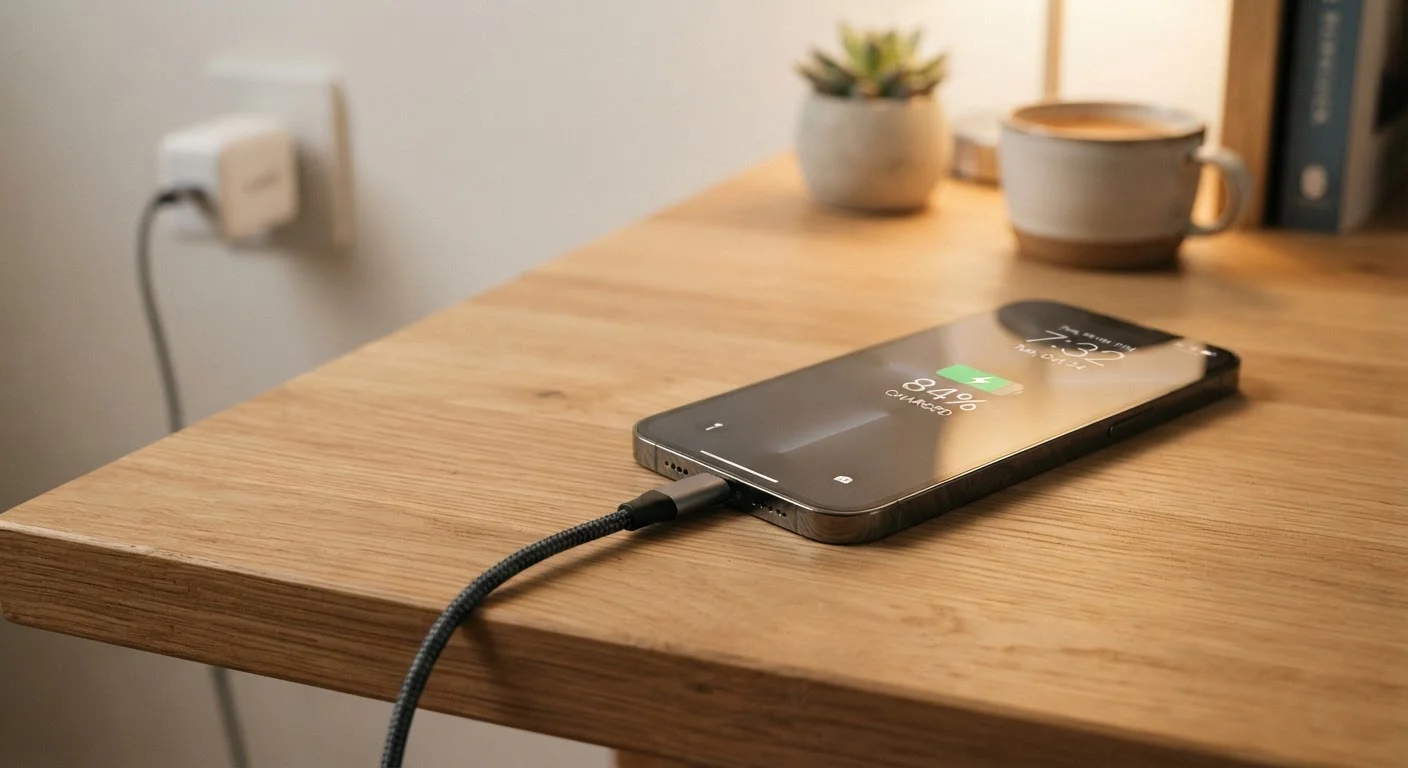
Both Android and iPhone include some form of adaptive battery management. On Android, Adaptive Battery learns which apps you use regularly and restricts background activity for the ones you rarely open. On iPhone, Optimized Battery Charging tracks your routine and slows charging past 80% when it predicts the phone will sit plugged in overnight — reducing long-term battery wear.
These features are often turned on by default, but it's worth checking. On iPhone, go to Settings > Battery > Battery Health & Charging. On Android, the path varies by manufacturer but is usually under Settings > Battery.
Optimized charging slows wear on your battery by learning when you actually unplug each morning.
Back Tap (iPhone) and Gesture Shortcuts (Android)
On iPhone running iOS 14 or later, a feature called Back Tap lets you assign an action — like taking a screenshot, opening the control center, or triggering an accessibility shortcut — to a double or triple tap on the back of your phone. Find it under Settings > Accessibility > Touch > Back Tap.
Android devices from Google, Samsung, and others offer comparable gesture shortcuts, including quick-launch actions assigned to button combinations or edge swipes. These shortcuts eliminate several taps for things you do dozens of times a day.
Back Tap turns the back of your phone into a customizable shortcut button with zero hardware changes.
Notification Summary and Scheduled Delivery
Rather than receiving every notification the moment it arrives, iPhone users can enable Scheduled Summary (under Settings > Notifications > Scheduled Summary), which batches low-priority alerts and delivers them at set times — say, 8 a.m. and 6 p.m. Android offers similar controls through notification channels, where you can delay or group alerts per app.
This is one of the most effective ways to reduce compulsive phone checking without missing anything genuinely urgent. Time-sensitive alerts from calls, alarms, or designated contacts still come through immediately.
Batching low-priority alerts into a summary dramatically cuts the number of times you pick up your phone.
App Permission Audits
Most people grant permissions when an app first asks and never revisit them. Both iOS and Android now include a Privacy Dashboard (Android 12+) or a per-app permissions summary (iPhone under Settings > Privacy & Security) that shows which apps accessed your location, camera, or microphone — and how recently.
Reviewing this list once every few months is a simple privacy habit. You may find apps that haven't been opened in months still holding location access. If you want to understand exactly what each permission does before deciding, our breakdown of app permissions walks through each one clearly.
A quarterly permissions review takes ten minutes and often reveals apps accessing data you never intended to share.
Live Captions and Accessibility Shortcuts
Live Captions — available on Pixel devices and some Android phones, as well as through iOS Accessibility settings — generates real-time subtitles for any audio playing on your device, including videos, voice messages, and phone calls. It works without an internet connection on supported devices.
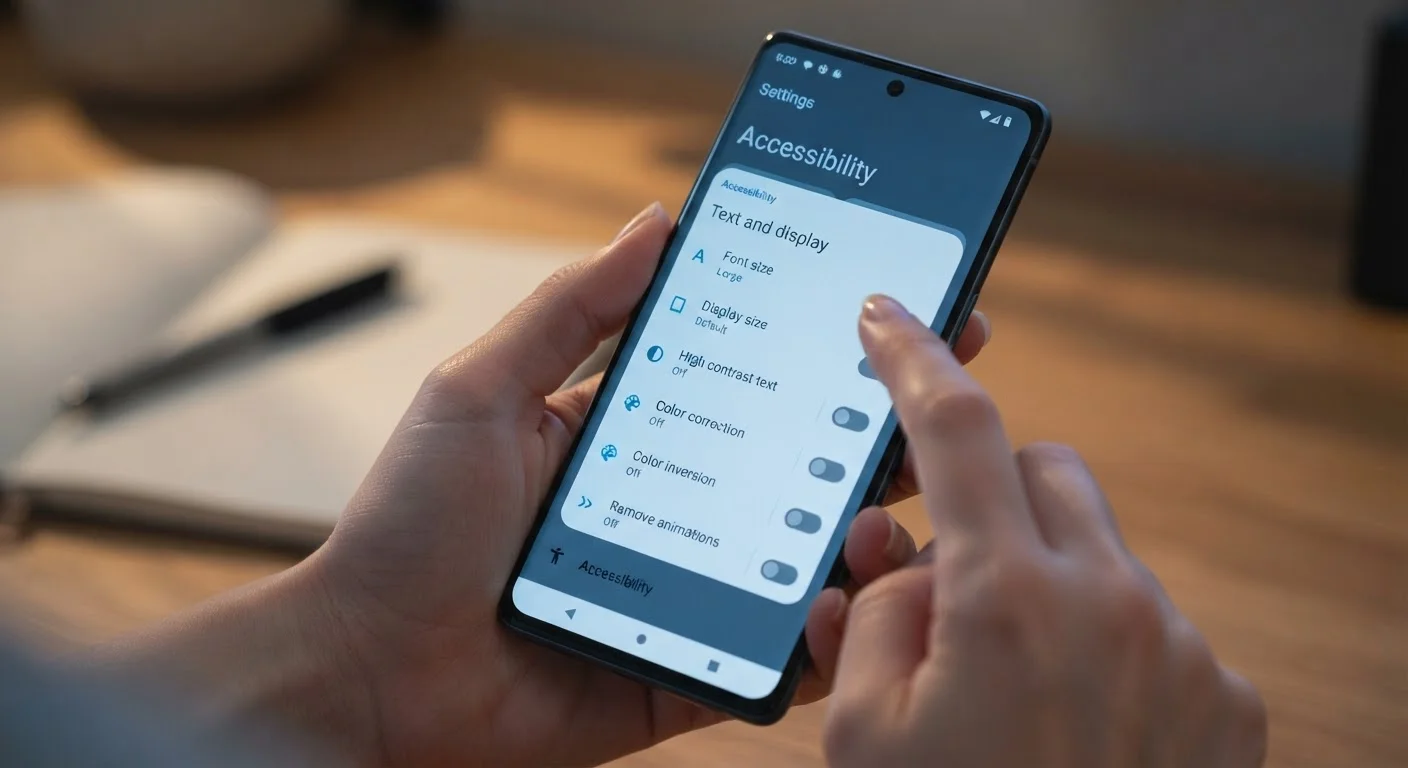
Accessibility shortcuts more broadly — including large text, display zoom, and sound recognition — are not just for users with disabilities. Display zoom, for instance, makes the entire interface larger and easier to read in bright sunlight or when you're fatigued. These tools are bundled into every phone and cost nothing to enable.
Live Captions generates real-time subtitles for any audio on your phone — no internet required on supported devices.
Making These Changes Stick
None of these settings require technical knowledge to use — they're designed for everyday consumers, not IT professionals. The challenge is simply knowing they exist. Once enabled, most of them run quietly in the background without any ongoing input from you.
Start With One Setting, Not All Six
Trying to configure every feature at once is a good way to get overwhelmed and change nothing. Pick the one that sounds most useful — Focus mode if distractions are a problem, battery settings if your phone dies too fast — and spend five minutes enabling just that. Return to the others over the following week.
For more on the broader category of settings that change how your device behaves day to day, this overview of overlooked device settings covers defaults worth revisiting across other gadgets too. Your phone is more capable than its default configuration suggests — it just takes one deliberate look through the settings to prove it.
Settings Paths Vary by Device
The exact location of these features depends on your phone's manufacturer and software version. Samsung, Google, and Motorola Android devices each organize their settings menus differently. If a setting isn't where this article describes, use your phone's built-in Settings search bar — available on both Android and iPhone — and type a keyword like 'battery' or 'back tap' to find it quickly.