
Why Defaults Aren't Designed for You
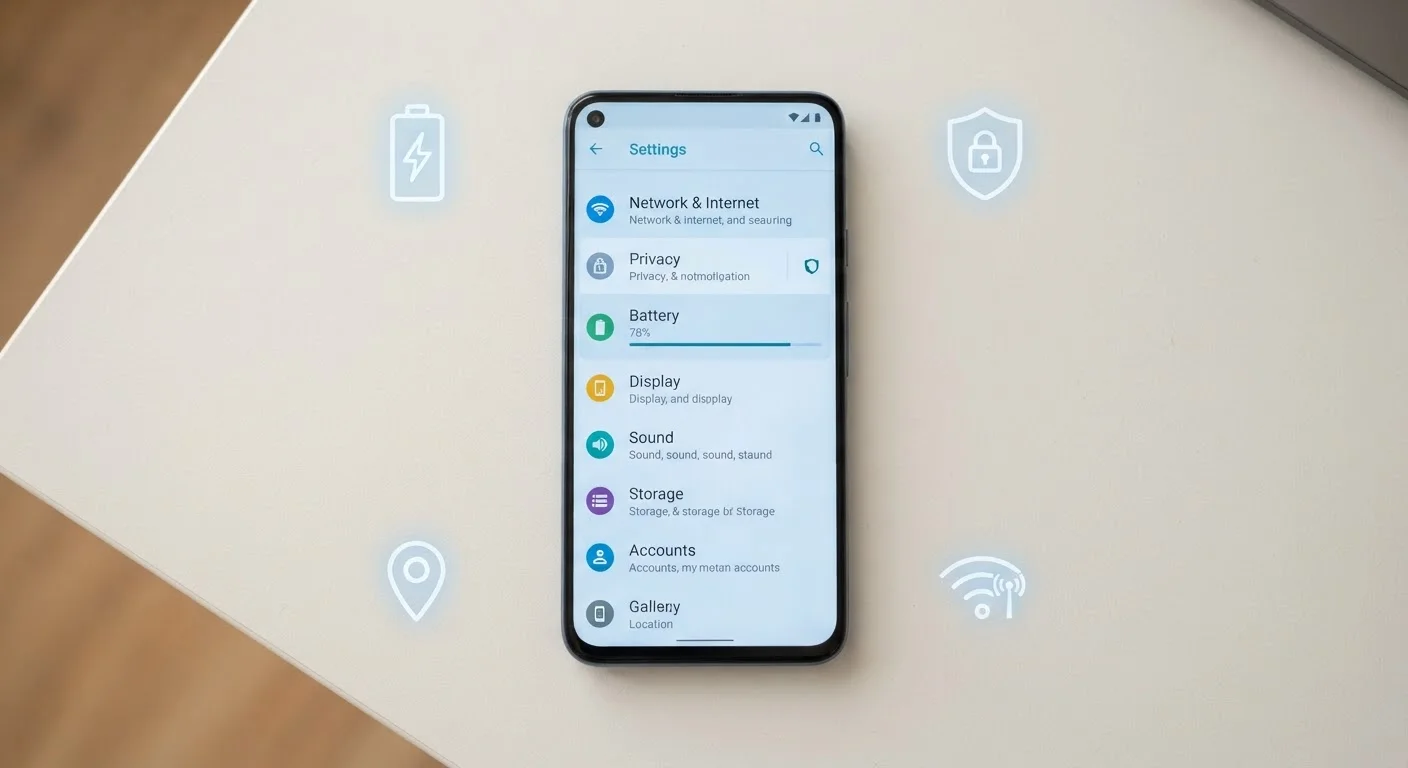
When a device ships from the factory, its settings are calibrated for a specific goal: to impress during a first impression. Screens are set to their brightest, features run in the background constantly, and data-sharing permissions are often open by default. None of that is optimized for a real person using the device over months or years.
The result is a machine that drains faster, shares more than you'd expect, and sometimes feels sluggish — not because it's underpowered, but because it's spending resources on tasks you never asked for. If you've noticed your phone warming up in your pocket or your laptop fan spinning during light work, overlooked settings are often a significant part of the explanation.
For a deeper look at how smartphones specifically hide useful controls, see our guide to hidden smartphone settings. The list below applies broadly — phones, tablets, and laptops all share several of the same overlooked areas.
Background App Refresh
On both iOS and Android, apps can refresh their content in the background even when you haven't opened them. This means a news app you haven't looked at all day may still be pulling data, using both battery and mobile data.
On iPhone, find this under Settings > General > Background App Refresh. On Android, it's typically under Settings > Apps, then individual app settings for battery usage. Turning this off for apps that don't need live updates — games, utilities, shopping apps — has no noticeable impact on usability but can meaningfully extend battery life.
Apps you haven't opened all day may still be quietly draining your battery in the background.
Location Permissions Set to 'Always'
Many apps request location access during setup, and a significant portion default to Always — meaning they can check your location at any time, not just when you're actively using them. Weather apps, delivery services, and even some games hold this permission without a clear reason.
Review each app's location setting and ask whether it genuinely needs continuous access. In most cases, switching to While Using the App or Ask Next Time loses no real functionality. This is one of the more straightforward privacy improvements you can make without any technical knowledge. For broader home network privacy context, our home network security basics guide covers related ground.
Switching location access from 'Always' to 'While Using' often costs nothing in functionality but gains privacy.
Screen Brightness and Adaptive Display
Auto-brightness uses your device's ambient light sensor to adjust the screen, but the sensor's baseline can drift over time. If your screen consistently feels too dim or too bright, recalibrating is simple: manually set brightness to a comfortable level while auto-brightness is enabled, and the system learns your preference over time.
On laptops, display brightness is frequently the single largest drain on battery. Dropping brightness by 30–40% in normal indoor conditions can add a noticeable amount of runtime — no setting is more impactful for battery life during everyday use. This pairs well with the charging habits covered in our article on outdated charging myths.
Display brightness is the single most impactful battery setting on most laptops and phones.
Notification Permissions for Every App
When you install an app, the default ask is often for full notification access. Most people tap Allow without thinking about it, and over months this creates a situation where dozens of apps compete for your attention throughout the day.
Go to your notification settings and treat each app as a deliberate choice: does this app need to interrupt me? For most apps, the honest answer is no. Restricting notifications to a small set of genuinely time-sensitive sources — messages, calendar alerts, navigation — has a real effect on focus and, secondarily, on battery life since each notification wakes the screen. Our guide on managing notification overload goes deeper on building a practical system.
Most apps don't need to interrupt you — auditing notifications is one of the fastest focus improvements available.
Sync Frequency for Email and Calendar
By default, many email clients are set to Push — meaning the server pushes new messages to your device the moment they arrive. For most people, this level of immediacy isn't necessary and keeps a persistent connection open that consumes battery.
Switching to Fetch on a 15- or 30-minute schedule still delivers email promptly by any practical measure, while allowing the radio hardware to rest between checks. This setting is typically found inside each email app's account settings rather than the system settings menu — worth checking separately for each account you've added.
Fetching email every 15 minutes instead of pushing instantly is a simple swap that eases battery drain.
Diagnostic and Usage Data Sharing
Most operating systems ask during setup whether you'd like to share diagnostic data with the manufacturer. Many users accept without reading the detail, which can include crash reports, app usage patterns, and in some cases, location data tied to device diagnostics.
This setting is usually found under Privacy or Analytics in your system settings. Turning it off typically has zero effect on how your device performs day to day. If you're preparing to sell or pass on a device, this is one of the settings worth reviewing alongside a full data wipe — our article on what to check before resetting a device covers the full checklist.
Disabling diagnostic data sharing has no effect on device performance and is a straightforward privacy step.
Making the Changes That Actually Stick
Working through these settings once is useful, but the bigger gain comes from understanding why each toggle matters — because updates and app installs can quietly reset some of them. For example, a major OS update occasionally restores default notification or location permissions, so it's worth a quick review afterward. Our article on what software updates actually fix explains why keeping firmware current remains essential even as you tighten other settings.
If your device still feels sluggish after addressing these areas, the issue may be app-level rather than system-level. The piece on why apps slow down over time walks through the underlying causes and which remedies genuinely help. Small configuration changes compound — each one individually is minor, but together they add up to a device that behaves more like a tool and less like a distraction.
Audit Settings After Every Major Update
Major OS updates occasionally reset certain permissions — particularly location access and notification settings — back to defaults. After installing a significant update, spend a few minutes in your Settings app to confirm your preferences are still in place. It takes less time than you'd expect and prevents silent changes from undoing your work.