
The Invisible Drain Happening Right Now
Most people assume a dying battery is just a sign of an old device. In reality, many gadgets drain faster than they should because of habits and default settings that quietly work against battery life from day one. Understanding what's actually happening inside your device is the first step to fixing it.
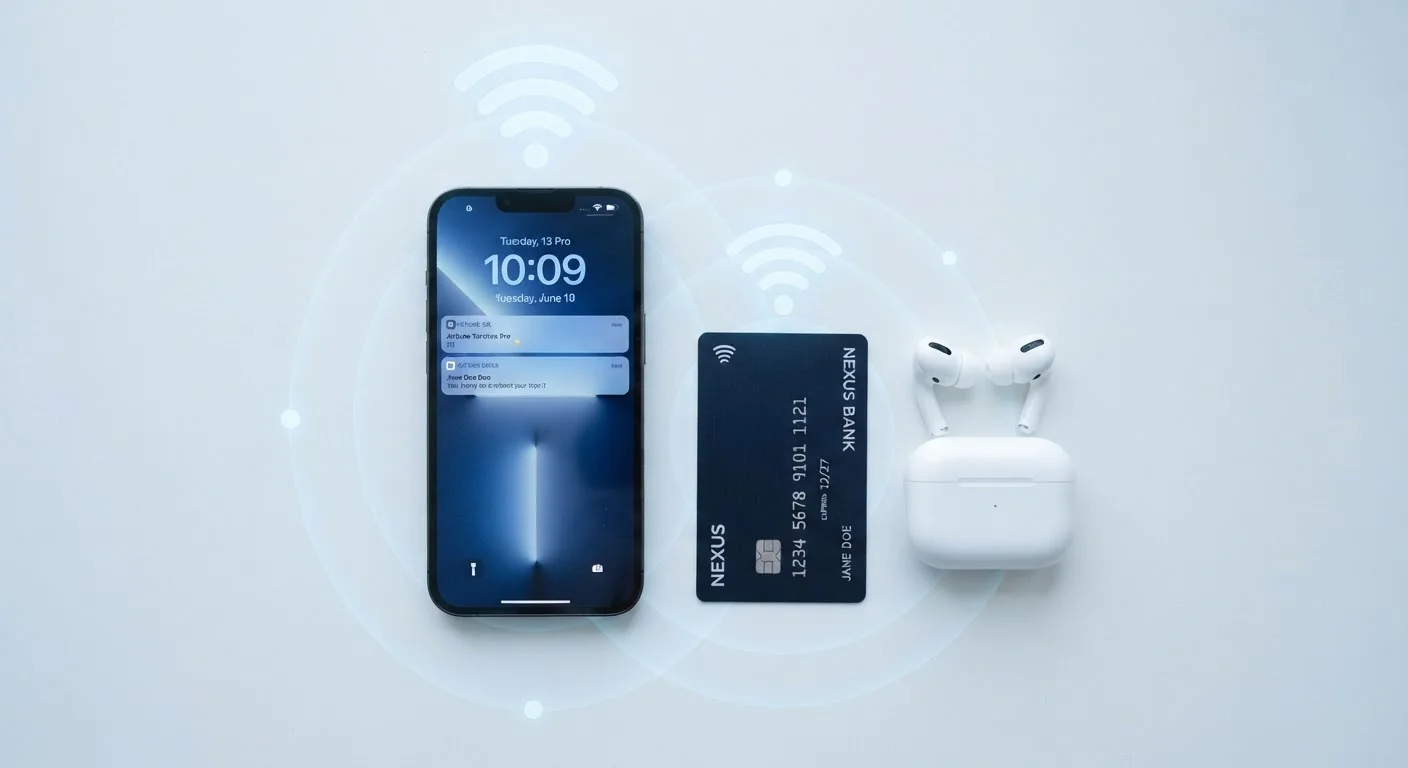
Modern portable devices run multiple processes simultaneously: syncing email, refreshing social feeds, tracking location, maintaining Bluetooth connections, and pushing notifications — all while you're not actively looking at the screen. Each of these tasks pulls power in small increments that add up quickly over a day.
The good news is that most of the biggest drains are controllable. You don't need to be a tech expert to address them — you just need to know where to look. The settings that change how your device actually behaves are often hidden in plain sight.
Leaving the screen at maximum brightness all day, even indoors.
Why it happens: Devices often ship with brightness set high so they look vivid in brightly lit stores. Many users never revisit this setting once setup is done.
Keeping Wi-Fi, Bluetooth, and location services always on, even when not in use.
Why it happens: These radios are enabled by default and quietly search for nearby networks or devices in the background, drawing power continuously even when no connection is active.
Assuming all background apps stop running when you swipe them away.
Why it happens: The visual gesture of swiping an app closed feels final, but on many systems apps continue refreshing content, syncing data, or tracking location in the background.
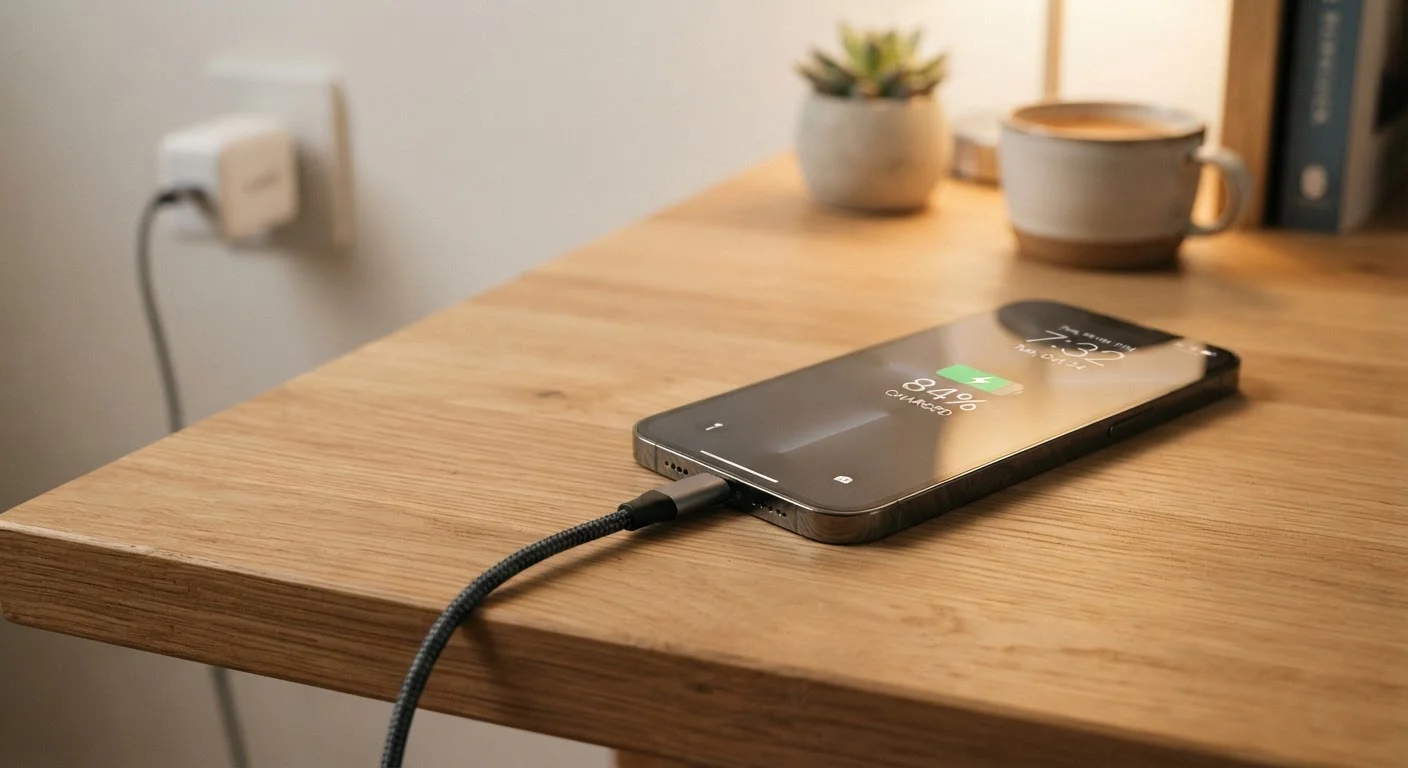
Charging the device to 100% and leaving it plugged in for hours, or routinely draining it to 0%.
Why it happens: Older advice from the era of nickel-cadmium batteries recommended full charge cycles. That advice is outdated for modern lithium-ion batteries, but it persists widely.
Running old software on a device and assuming updates don't affect battery life.
Why it happens: Software updates can feel risky or slow to download, so many users postpone or skip them indefinitely.
How to Protect Your Battery Over the Long Term
Avoiding the mistakes above will extend your charge between plugging in, but protecting the battery's long-term health requires a slightly different focus. A battery that degrades faster than normal doesn't just mean shorter days — it means a permanently reduced ceiling on how long your device can run, regardless of how carefully you use it.
Heat Silently Kills Battery Capacity
Lithium-ion batteries — the type in virtually every modern smartphone, tablet, and laptop — degrade faster when regularly exposed to high temperatures. Leaving your device in a hot car, on a sunny windowsill, or under a pillow while charging accelerates the chemical breakdown inside the battery. Over time, this permanently reduces how much charge the battery can hold, and no software fix can reverse it.
Beyond heat, software plays an underappreciated role. Poorly optimized apps can send a processor into overdrive, generating heat and consuming power far beyond what their function justifies. Your device's built-in battery usage screen will identify the offenders. For a broader look at keeping your hardware in good condition over time, the habits that keep devices running longer covers storage, temperature, and update practices in depth.
Don't Ignore Battery Health Diagnostics
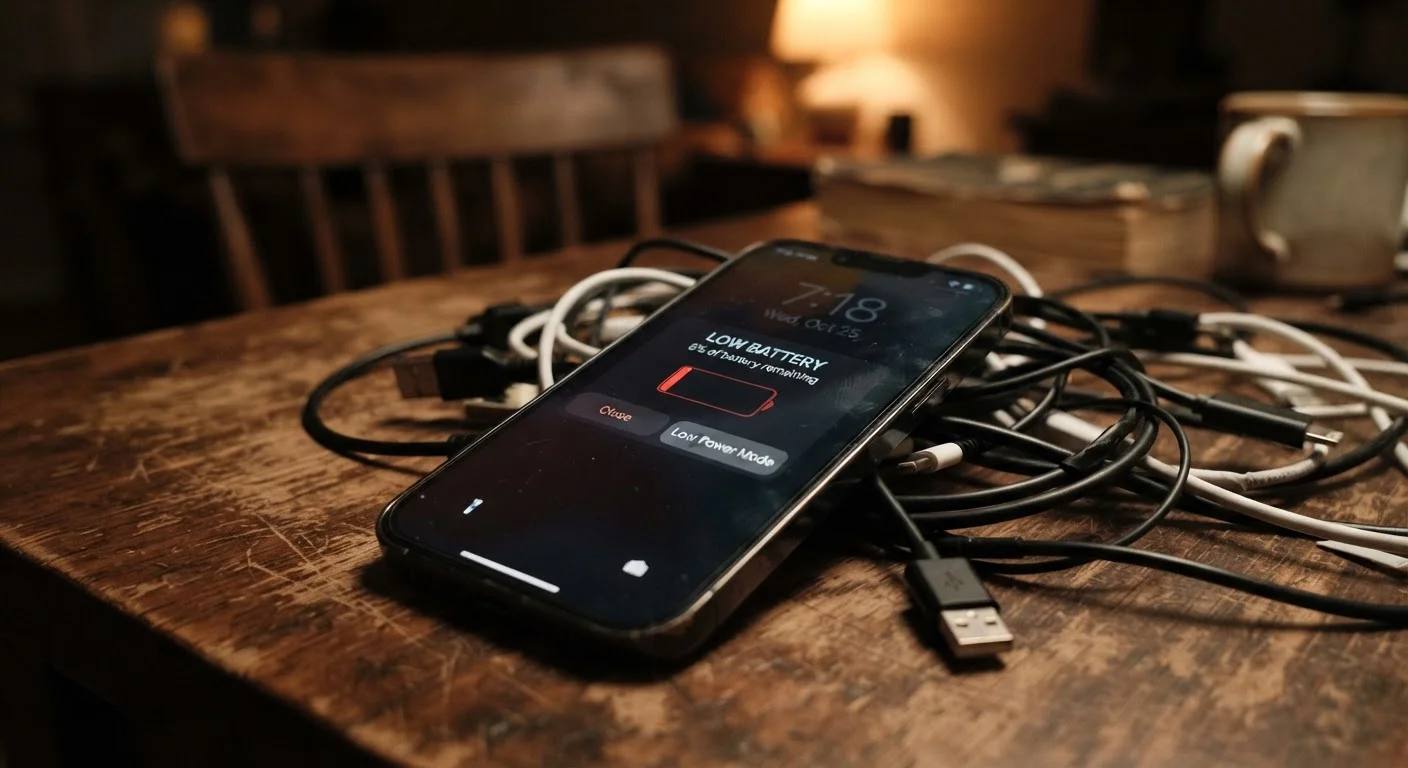
Most modern smartphones include a built-in battery health screen buried in settings. If your battery health reads below 80%, your device is operating at a significant fraction of its original capacity. Continuing to rely on a heavily degraded battery without addressing it can lead to unexpected shutdowns, especially in cold weather or during demanding tasks.
There's also a behavioral dimension. Many users charge their devices in ways that feel intuitive — plugging in at night, unplugging in the morning — without realizing that hours of sitting at full charge puts sustained stress on lithium-ion cells. Small adjustments to your charging routine, combined with the settings changes described above, compound into real gains in battery health over months and years. For more on those hidden smartphone tools that help manage power, your phone's settings menu is worth a longer look than most people give it.
~45%
Battery power consumed by the display
Research from energy measurement studies has consistently found that the screen accounts for roughly 40–50% of total battery consumption on smartphones during active use.
20%
Typical battery capacity loss threshold
Apple and other manufacturers consider a battery that holds less than 80% of its original capacity to be meaningfully degraded, which can noticeably affect daily runtime.