
Why the Confusion Matters
Most people have lost a file at some point — a photo that vanished, a document that reverted to an older version, a contact list that disappeared after a phone swap. In many cases, the underlying cause is the same: assuming a file was protected when it was only partially protected.
The terms saving, syncing, and backing up get used interchangeably in everyday conversation and even in some product descriptions. But they describe fundamentally different processes with different outcomes. Understanding the distinction is one of the most practical things you can do to protect your digital life — without buying anything new or learning complicated tools.
If you're planning to set up a new phone or computer, knowing exactly what's saved, what's synced, and what's actually backed up before you start can prevent a very stressful situation.
Saving: The Starting Point
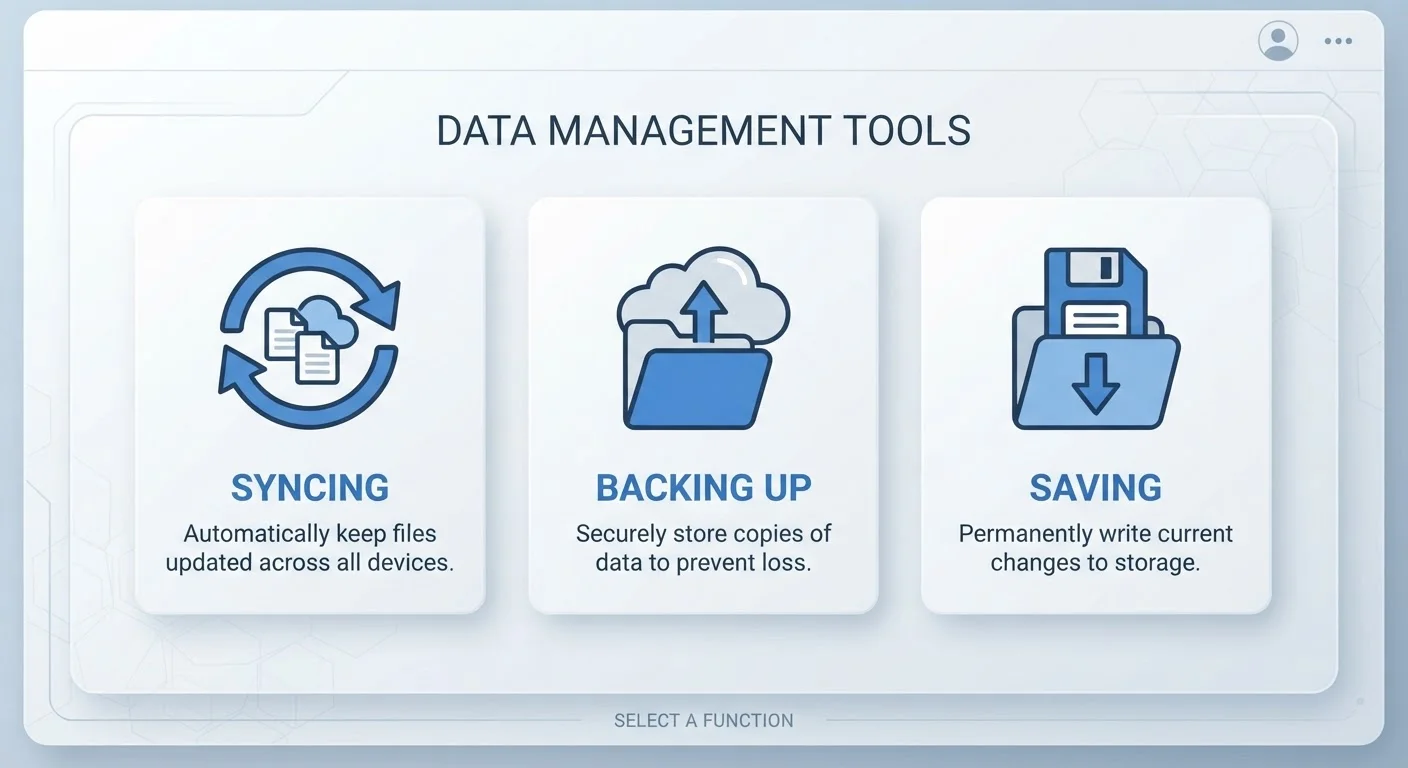
Saving is the most basic action. When you press Ctrl+S or tap a save button, your device writes the current state of that file to storage — typically the hard drive or internal memory of the device you're using. That's it. The file now exists in one place, at that moment in time.
Saving does not protect against hardware failure, accidental deletion, or theft. If your laptop's hard drive fails and the file lives only there, it's gone. Saving is a prerequisite for everything else, but it's just the first step — not the finish line.
Check Where Your Files Are Actually Stored
Open your file manager and look at where your most important documents and photos are located. If they sit inside a folder that's part of a sync service (like iCloud, Dropbox, or OneDrive), they're synced — not backed up. Make a habit of verifying this every few months, especially before switching devices.
Syncing: Convenient, But Not a Safety Net
Syncing keeps the same file consistent across multiple devices. When you edit a document on your laptop, a sync service like iCloud Drive, Google Drive, or OneDrive pushes that change to your tablet and phone automatically. This is genuinely useful — it means you always have the latest version no matter which device you pick up.
The problem is that syncing is a mirror, not a copy. Whatever happens to the original file happens to every synced copy. Delete a file on your phone, and it disappears on your laptop too. If a file becomes corrupted — say, because an app crashed mid-save — the corrupted version propagates to all your devices.
This is why storing files in a synced cloud folder is not the same as backing them up. For a deeper look at how cloud storage works more broadly, see our guide on cloud storage vs. local storage.
29%
People who have permanently lost files
According to Backblaze's consumer survey data, roughly 3 in 10 people report having permanently lost important files at some point.
1 in 3
Consumers who confuse syncing with backup
Industry research consistently finds a large share of users believe their cloud sync service fully protects their data from loss.
Backing Up: The Real Protection
A backup is an independent copy of your data — stored separately from your primary device and not automatically overwritten by changes you make in real time. The key word is independent. A proper backup can be restored even if your primary device is lost, stolen, or fails completely.
Backups can live on an external hard drive, a dedicated cloud backup service, or both. Unlike sync services, good backup tools store multiple versions of files over time, so you can recover a document from last Tuesday even if you've saved over it three times since then.
A widely used framework in IT circles is the 3-2-1 rule: three copies of your data, on two different types of storage media, with at least one copy stored offsite. For everyday users, a practical version might be: the file on your computer, a copy on an external drive, and a copy in a dedicated cloud backup service.
For more on how your files and device storage actually work together, it's worth reading about the difference between RAM and storage — a distinction that often gets muddled in the same way.
A Simple Way to Think About All Three
Think of it this way: saving is writing something down. Syncing is making sure everyone in the room is reading the same page. Backing up is photocopying that page and locking it in a drawer.
Only the last action protects you from the page being torn out.
Check your current setup by asking three questions: Where does each important file actually live? If that location failed right now, would another copy exist? And is that other copy truly independent — or just a mirror?
If you're also thinking about broader digital hygiene, keeping your software current plays a similar role. Our article on why skipping software updates is riskier than you think explains how outdated software can put your files at risk in the first place.