
What Is a Password Manager?
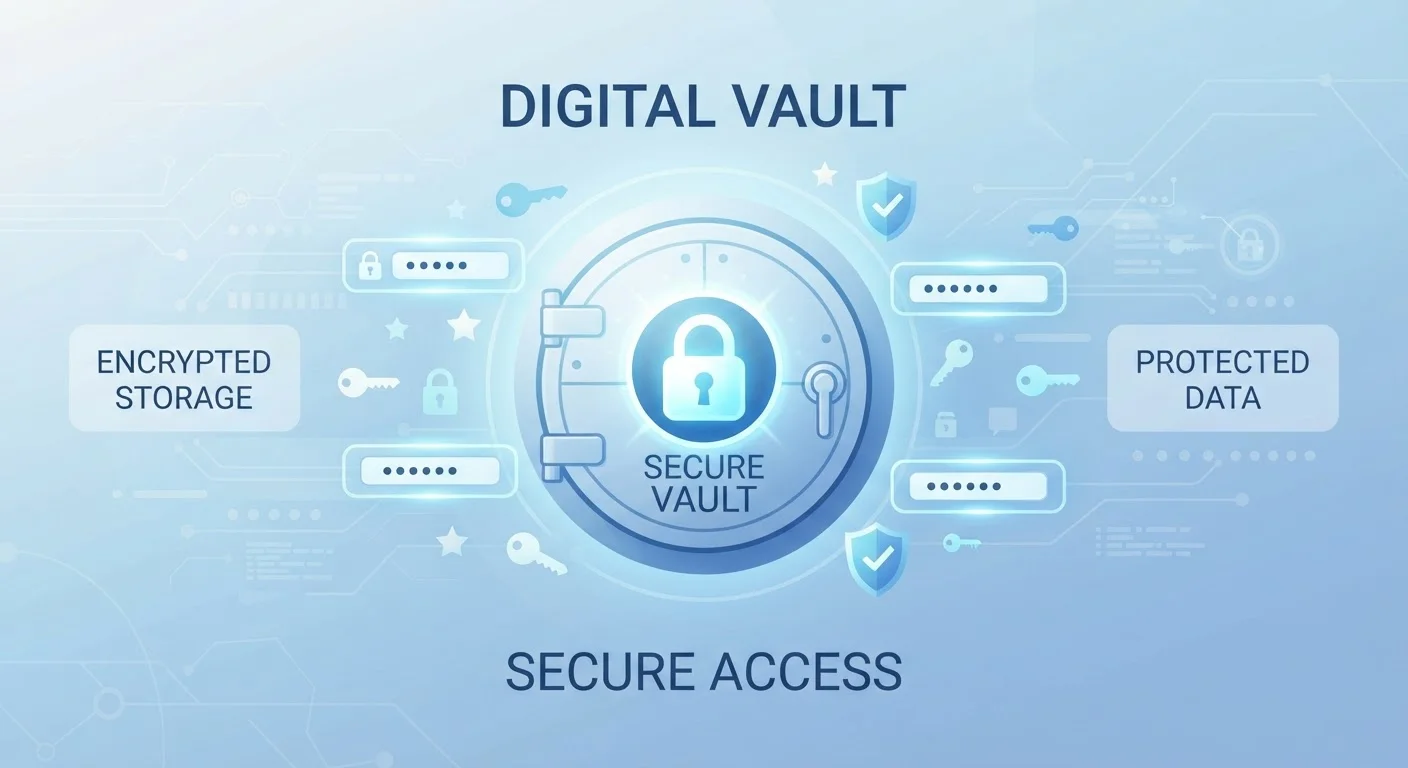
A password manager is an app that securely stores all of your usernames and passwords in one encrypted digital vault. Instead of remembering dozens of different logins, you remember one strong master password to unlock the vault — and the app handles everything else.
Most password managers also generate strong, random passwords for you when you create a new account. When you return to a site, the app automatically fills in your credentials. Think of it as a highly secure, organized notebook that only you can open.
Master password
The single password you create to lock and unlock your password manager vault. It is the only password you need to memorize, so make it long and unique.
Encryption
A process that scrambles your data into an unreadable format. Only someone with the correct key — your master password — can unscramble it.
AES-256
A widely trusted encryption standard used by banks and government agencies. It makes encrypted data virtually impossible to decode without the correct key.
Two-factor authentication (2FA)
A security step that requires a second proof of identity — such as a code sent to your phone — in addition to your password when logging in.
Credential stuffing
An attack where criminals take stolen username and password pairs and automatically try them on many different websites to break into other accounts.
Autofill
A feature that automatically enters your saved username and password when you visit a login page, so you don't have to type them yourself.
Why Reusing Passwords Is Risky
If you use the same password on multiple sites — a habit most people share — a single data breach can expose every account that shares it. Attackers use a technique called credential stuffing: they take stolen login pairs from one breach and automatically try them on hundreds of other sites.
Keeping passwords in a notes app or a text document carries similar risks. Those files are rarely encrypted, and anyone who gains access to your device gains access to all your accounts at once. A password manager eliminates both of these vulnerabilities by ensuring every account gets a unique, complex password you never have to type or remember.
How Password Managers Keep Your Data Safe
The security foundation of any password manager is end-to-end encryption. Your vault is encrypted on your device before it ever leaves — meaning the provider's servers only receive scrambled data they cannot read. The encryption key is derived from your master password, which the service never stores or transmits.
Most reputable password managers use AES-256 encryption, a standard trusted by financial institutions and government agencies. When combined with two-factor authentication (2FA) — a second verification step like a code sent to your phone — the result is a layer of protection that is dramatically stronger than any password you could memorize on your own.
Enable 2FA on Your Vault First
Before you start adding passwords, turn on two-factor authentication for your password manager account itself. This means that even if someone learns your master password, they still cannot access your vault without the second verification step. It takes about two minutes to set up and is the single highest-impact action you can take.
Setting Up Your First Password Manager
Getting started is simpler than most people expect. Here is a straightforward path for a first-timer:
- Choose a starting point. If you use an iPhone or iPad, Apple's built-in Keychain is already on your device. Android users have Google Password Manager. Both are free, reputable, and require no additional installation.
- Create your master password. Pick a passphrase — four or five random words combined — that you can memorize but have never used anywhere else. Write it down once and store it somewhere physically secure, like a locked drawer.
- Import or add existing passwords. Most password managers let you import saved passwords from your browser, or you can add accounts manually as you log into them over the next few days.
- Enable autofill. In your device settings, turn on the autofill or password manager feature so credentials are suggested automatically when you visit a site or open an app.
- Turn on two-factor authentication. In the password manager's settings, add 2FA for your vault. This one step significantly raises your security baseline.
From that point, every time you create a new account, let the password manager generate the password. You never need to think of one yourself again.
Common Concerns and Honest Answers
First-timers often have reasonable hesitations. Here are honest answers to the most common ones.
- "What if the company gets hacked?"
- Even in a breach, attackers receive only your encrypted vault — the scrambled data is useless without your master password, which the company never has. Your risk in that scenario is far lower than the ongoing risk of reusing weak passwords.
- "I'm not very tech-savvy."
- The built-in options on smartphones are designed for exactly this situation. If you can use an app on your phone, you can use a password manager. The autofill feature means most interactions require just one tap.
- "What if I switch phones or devices?"
- Cloud-syncing password managers keep your vault accessible across all your devices. Switching phones means simply signing in to your password manager on the new one — your passwords travel with your account, not the hardware.
Managing your digital security doesn't have to be complicated. Just as organizing your finances starts with small, consistent habits — much like the approach covered in building a savings habit from zero — protecting your online accounts starts with one practical step. A password manager is that step.